
Find your way around your workspace
The left menu, the “Hello …” dashboard, notifications and the account menu: where to find what.
- The left menu is the same on every page of your workspace.
- Every member of the workspace sees the same jobs and the same candidates.
Your workspace opens on the dashboard. The left menu leads to everything else.
The left menu
From top to bottom:
- Dashboard: what is waiting for your decision today.
- Notifications: a panel of what happened.
- Recruitments: your jobs, with their candidates. See Find your jobs.
- Candidates: every application in your workspace.
- Interviews: calendar, appointments and briefs. This entry only appears if interviews are turned on for your workspace.
- AI Hunt: the profiles Bellamy approaches for you. See Follow the AI Hunt.
- Bellamy Intelligence: what Bellamy knows about your company.
- Career page: the page where your jobs are published.
When “Ask Bellamy” is turned on for your workspace, a section of the menu keeps your conversations with it, and a button of the same name appears at the top of every page. See Ask Bellamy a question in the app.
At the bottom of the menu, “Help” opens the support chat. The button at the top of the menu collapses the sidebar to free up space; on a phone, the menu reopens with the button at the top left.
The dashboard
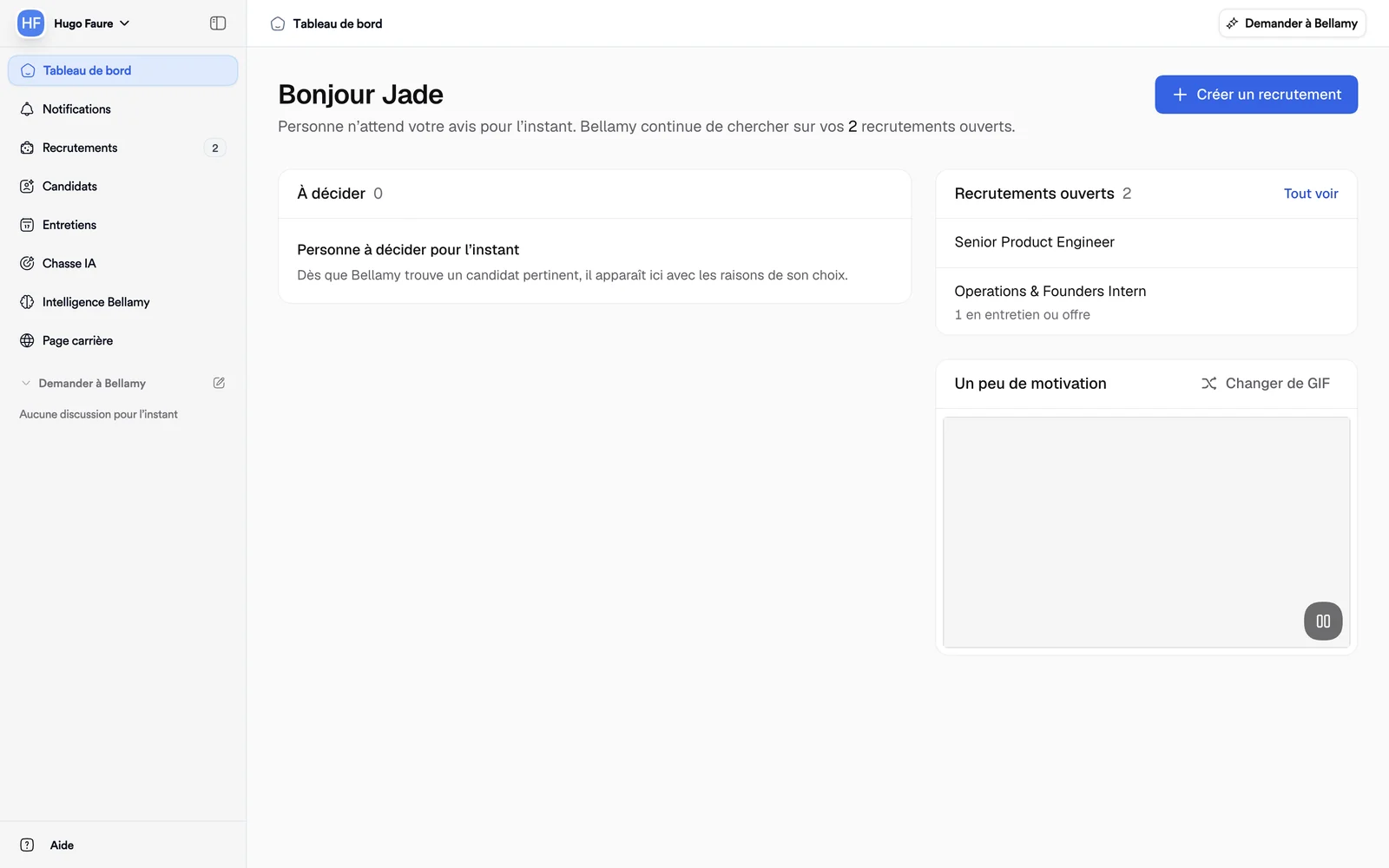
At the top, “Hello” followed by your first name, and a sentence saying how many candidates are waiting for your decision, or that nobody is. The “Create a job” button starts a new job.
- To decide: the candidates Bellamy finds relevant for your jobs. Open a profile to read why, then say who you want to meet. A “New” badge marks the ones you haven't seen yet. When the list is empty, Bellamy keeps searching: candidates show up here as soon as it finds some.
- Open jobs: your open jobs. “See all” opens the full list, and a link leads to your drafts if you have any.
- A bit of motivation: a GIF, which “Show another GIF” replaces. A button pauses it.
Notifications
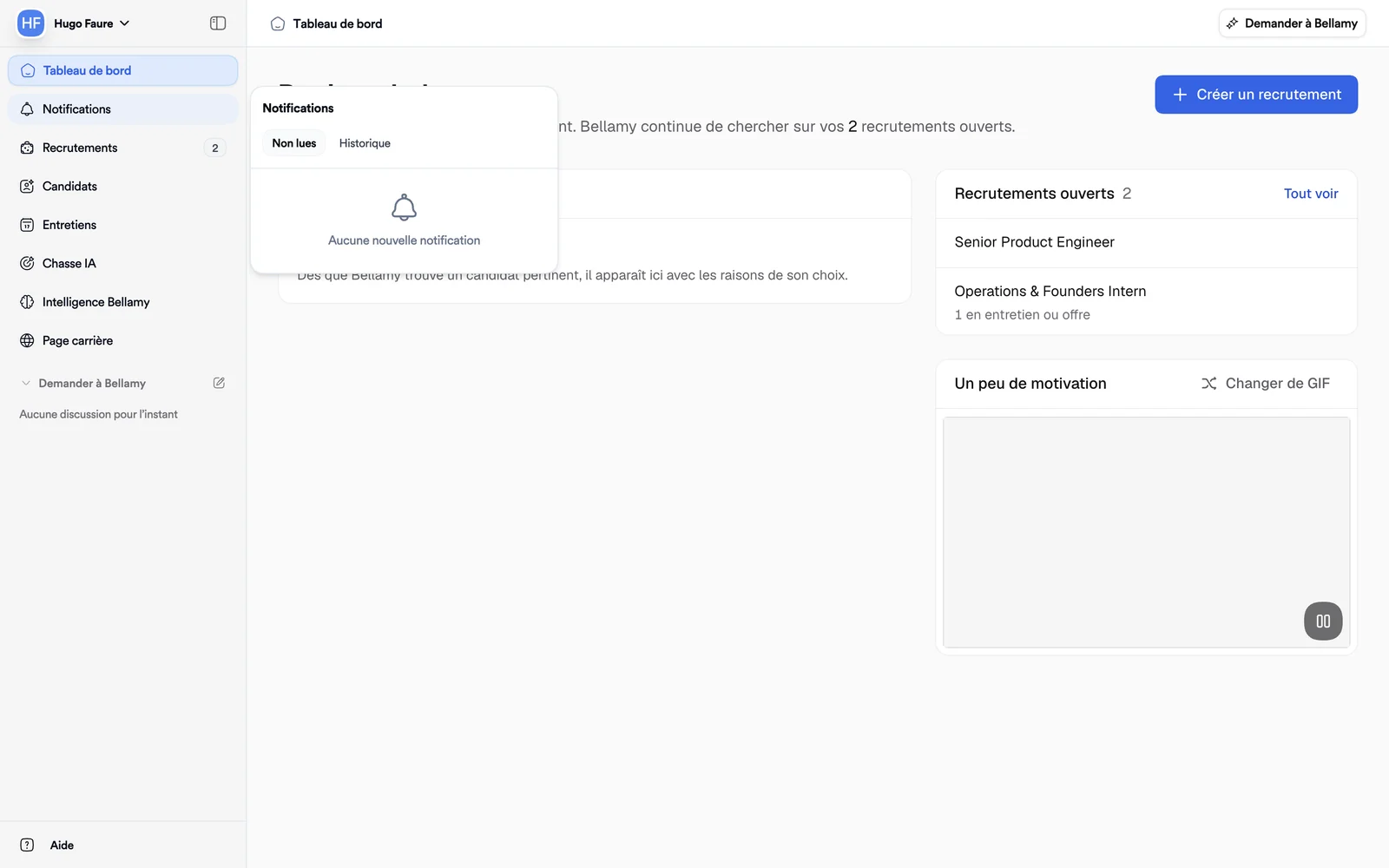
“Notifications”, under “Dashboard”, opens a panel with two tabs: “Unread” and “History”. “Mark all read” clears the unread list.
The account menu
Click your name at the top of the menu. It offers:
- “Settings”: your profile, connected accounts, the workspace, users and integrations;
- “Invite and manage members”: see Invite your team;
- “Log out”.
What's next
To start your first role, follow Your first hire, from description to decision.