
Set up your profile, your workspace and how Bellamy reaches you
Your photo, name and language, the channel Bellamy uses to keep you posted, and your company's details.
- Account menu at the top left, then Settings.
- Profile is personal; Workspace concerns the whole company.
Settings are split in two: "Account", which is about you, and "Company", which your whole team shares.
Your profile
Open "Settings", then "Profile".
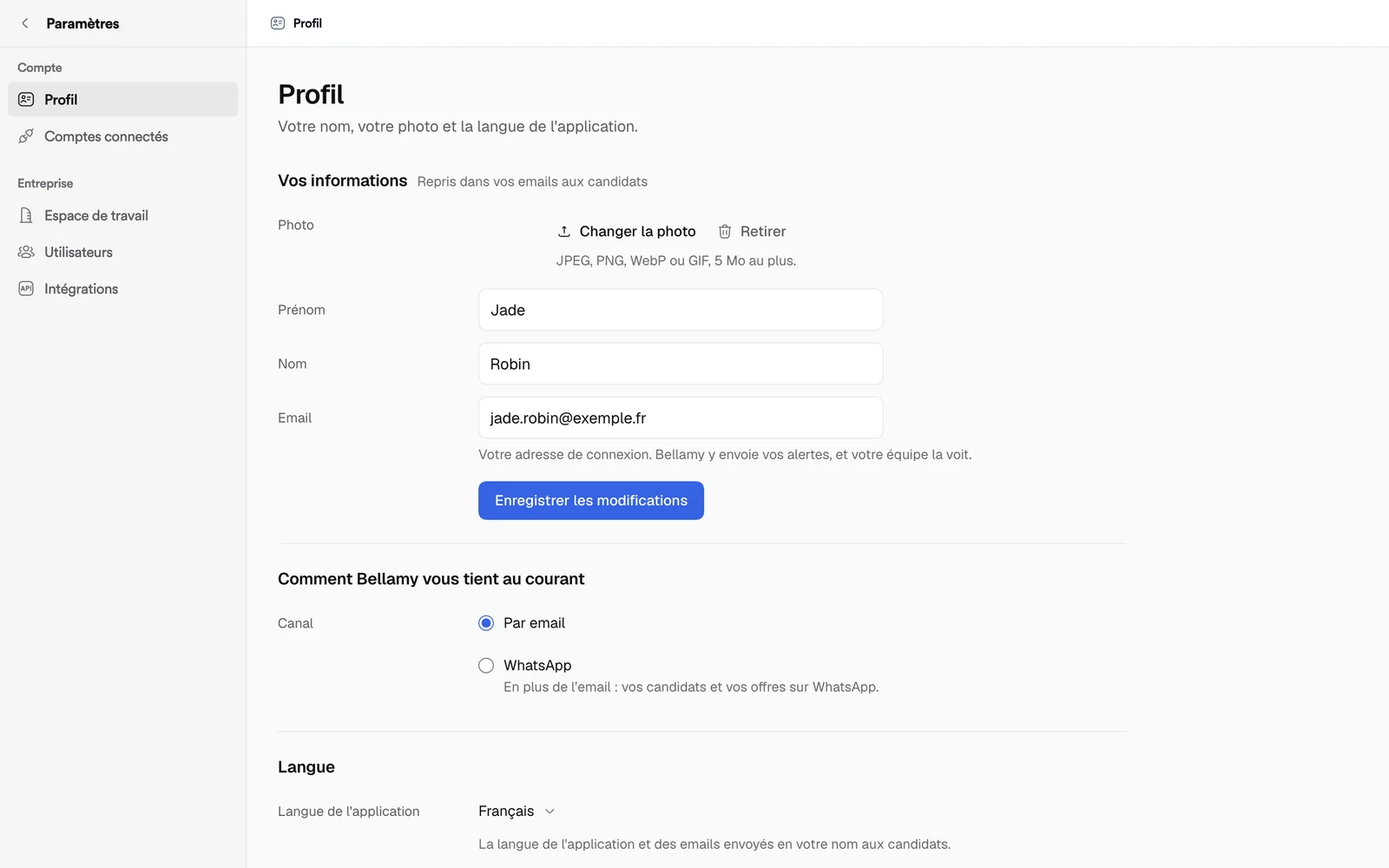
- "Profile Picture": "Change photo" or "Remove". JPEG, PNG, WebP or GIF, 5 MB max. Without a picture, your initials take its place.
- "Your details": first name, last name and email. They are used in your emails to candidates. Click "Save Changes".
- "Application Language": the language of the app and of the emails sent to candidates on your behalf.
How Bellamy keeps you posted
Under "How Bellamy keeps you posted", choose the "Channel":
- "By email": to your sign-in address.
- WhatsApp: on top of email, your candidates and jobs on WhatsApp. You don't type your number: open WhatsApp and send the prefilled message, which holds a code linking your number to your account. Until the number is linked, Bellamy writes to you by email. "Change" lets you link another number.
Your choice is saved as soon as you make it: a "Saved." message confirms it.
Your workspace
Open "Settings", then "Workspace". The details are used in your job ads and your messages to candidates.
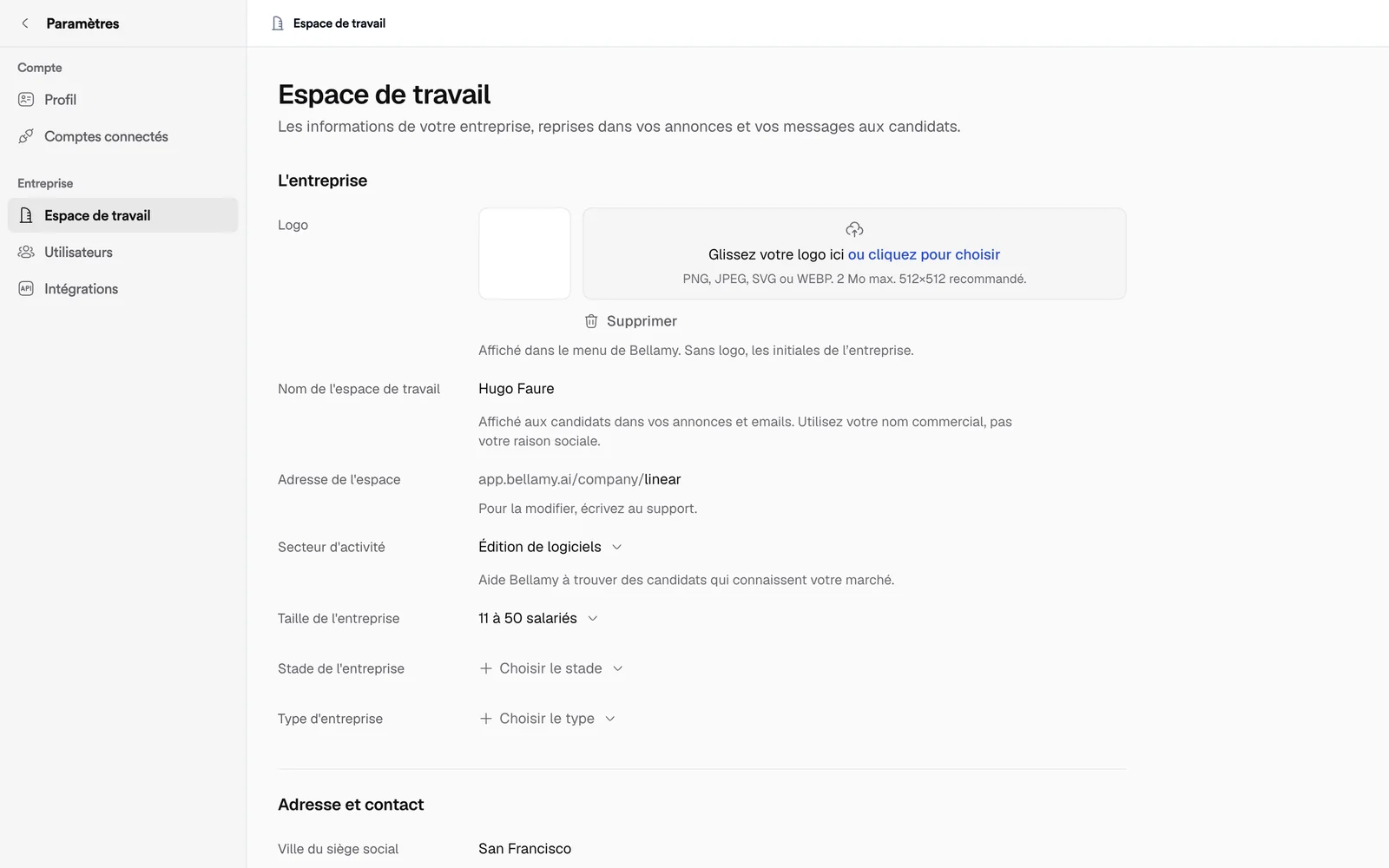
- "Logo": shown in the Bellamy menu. Without a logo, the company's initials.
- "Workspace Name": shown to candidates in your job ads and emails. Use your trade name, not your legal name.
- "Workspace address": can't be changed here. To change it, contact support.
- "Industry Sector", "Company Size", "Company Stage", "Company Type": they help Bellamy find candidates who know your market.
- "Address and contact": headquarters city, country and address, website and phone. Bellamy reads your website to complete the company profile; the phone number is for internal use, never shown to candidates.
Each field is saved when you change it.
Live access for the Bellamy team
Under "Bellamy support", "Live access for the Bellamy team" is off by default. When on, during a demo or a support session you see your Bellamy contact's cursor and can follow it in one click. They never change anything for you, and you can revoke it at any time. The setting is saved right away.
What next
To invite colleagues, open "Users": see Invite your team. What Bellamy knows about the company is set elsewhere: see Tell Bellamy about your company.