
Create a job
Describe the role in a sentence or paste a job ad. Bellamy asks its questions one at a time and prepares the job as a draft.
- Recruitments menu, “Create a job” button (or “New Recruitment”).
- The job stays a draft until you open the recruitment: nobody sees it.
Creating a job means answering Bellamy. You give the role, it reads, then it only asks the questions that matter.
Say who you are looking for
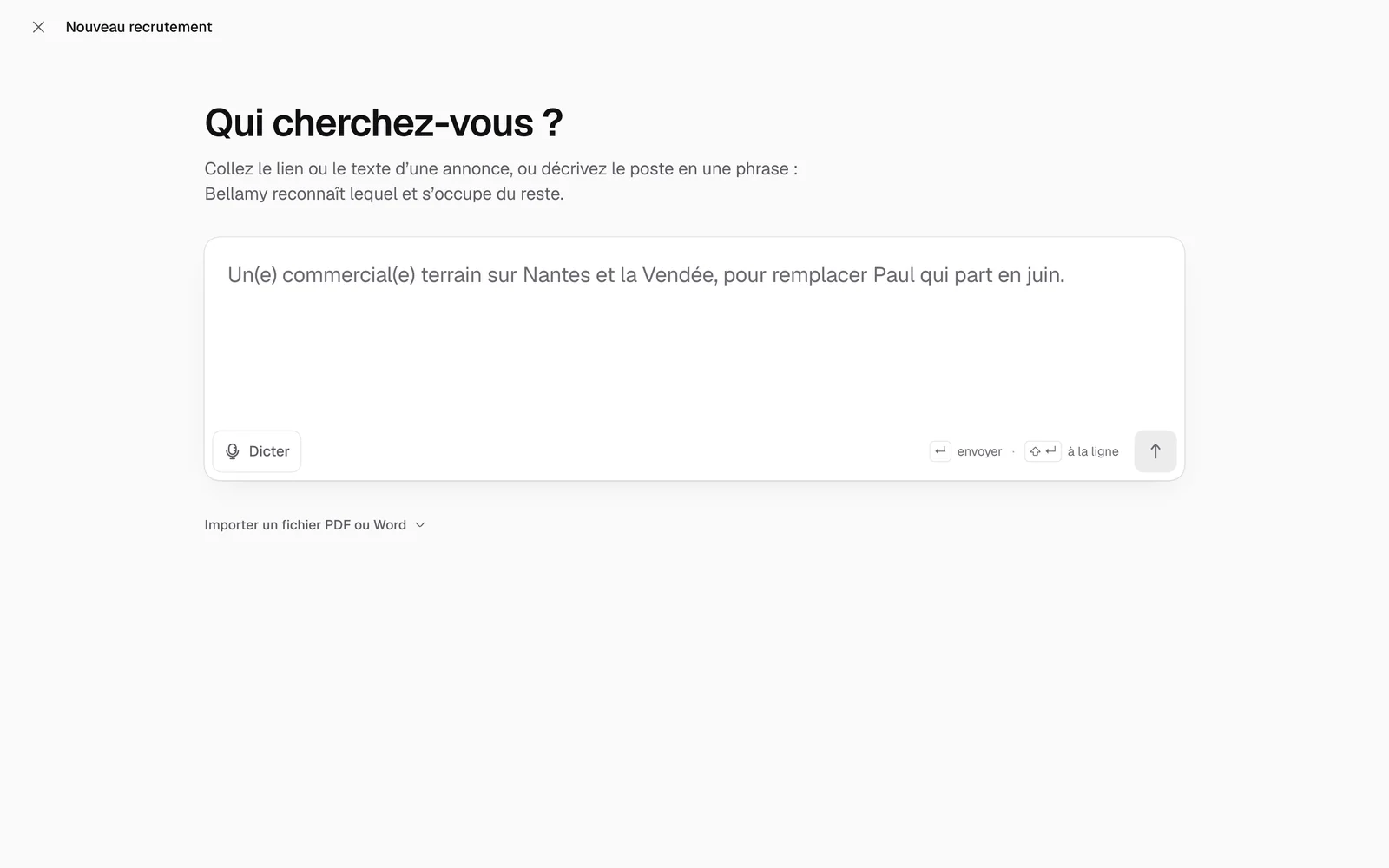
- In “Recruitments”, click “Create a job”. A full-screen page opens: “Who are you looking for?”.
- In the box, paste the link or text of a job ad, or describe the role in a sentence. Bellamy recognises whether it is an ad or a description. The “Dicter” (dictate) button lets you speak instead of typing.
- Submit with “Send”, or with the Enter key (Shift + Enter starts a new line).
Depending on your workspace, starting ideas appear under the box, drawn from your past jobs or your sector.
Start from an existing job post
Under the box, “Import a PDF or Word file” opens “I already have a job post”.
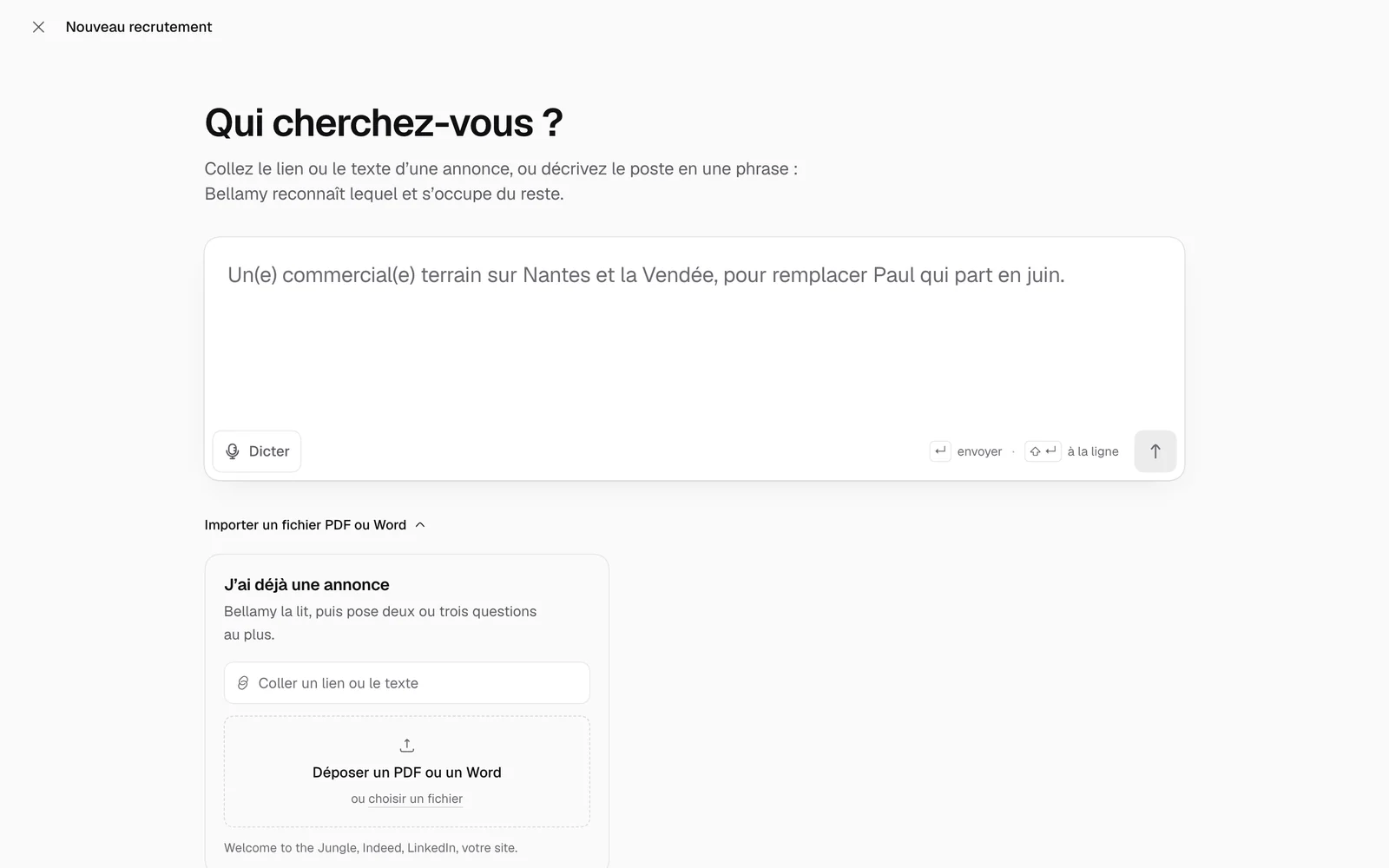
Paste a link or the text, or drop a PDF or Word file, then click “Read the job post”. Bellamy reads it, then asks two or three questions at most.
The text field grows as you paste, up to 60% of the screen height. Beyond that, the text scrolls inside the field. You can also make it larger by dragging its corner.
- A file can be 10 MB at most. A PDF that is only an image is refused: Bellamy finds no text in it. Paste the text instead, or send a Word file.
- LinkedIn protects its job posts: if a LinkedIn link can't be read, paste the text of the post or drop it as a PDF.
Start from one of your jobs
“All your jobs…” lists your jobs, most recent first, under “Start from one of your jobs”. Pick one: Bellamy reads it like a job post.
Answer the questions
Bellamy asks its questions one at a time. The “Question x of y” counter shows where you are; how many there are depends on what the job post already said. Answer as you would to a colleague.
- The setup saves itself: “Saved at …” shows on screen.
- The cross at the top left closes the screen without losing anything (“Close: your progress is kept”).
- “Finish the questions” moves on once you have given the essentials.
Review the result
At the end, you land on the job page as a draft, on the “Brief” tab. What Bellamy wrote or estimated itself is marked “To confirm”: review it before opening the recruitment.
Review the job's tabs one by one: