
Build and publish your career page
A page in your colors to present the company and your jobs. Bellamy writes it, you review it, then you publish it.
- Career page menu.
- The Bellamy team turns the page on: otherwise the screen offers Request access.
The career page presents your company and your jobs at an address of your own, like your-company.bellamy.ai. Bellamy writes its content from your profile; you review, adjust, then publish.
If the page is locked
Until the Bellamy team has turned it on, the screen shows "Give your brand a real careers page", with the "On request" badge. Click "Request access": a prepared email opens, and the Bellamy team turns the page on for you.
Write the page
The first time you open the page, Bellamy writes it on its own from what it knows about your company ("Bellamy is writing your page from what it read on your site…"). Give it a moment, then read it over.
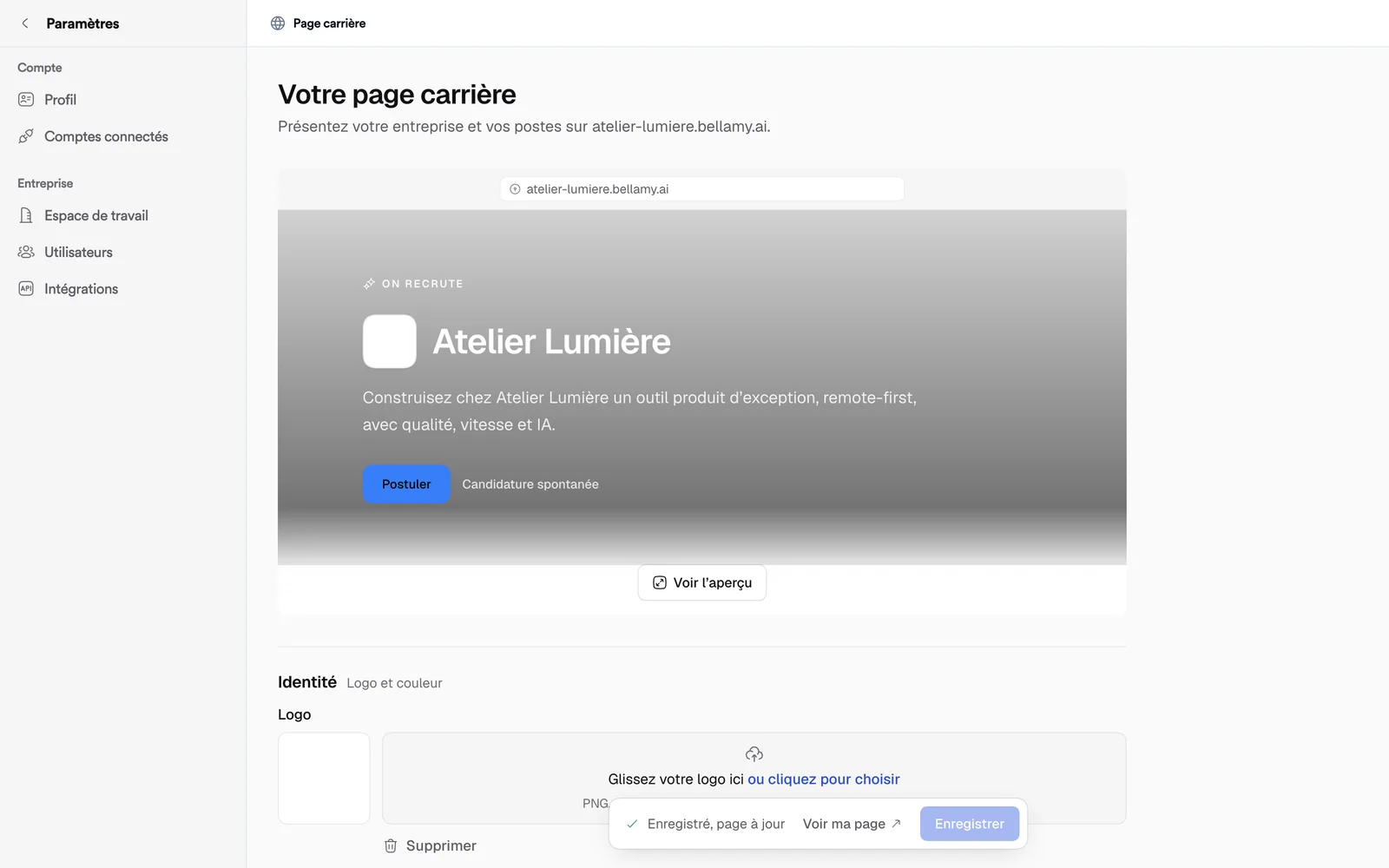
The screen reads from top to bottom:
- Preview: the page as it will look, on "Desktop" or "Mobile", with "Open preview" to see it large.
- "Identity": your logo, your "Primary color".
- "Your page address": the name that comes before
.bellamy.ai. Bellamy checks that it's available. - "Page header": the cover photo, which you can "Adjust", and the "Tagline".
- "Page content": the sections, in page order. "Write my page" asks Bellamy to rewrite the whole page, "Add a section" opens the catalogue ("About", "Values", "Perks", "FAQ", "Team"…). Sections written by Bellamy carry "Written by Bellamy"; each can be rewritten, improved or shortened, moved or removed.
- "Jobs shown": tick the jobs the page shows.
- "Publishing": see below.
Publish
- Under "Publishing", turn on "Publish the page": "The page becomes visible to everyone at its address". A message confirms "Career page published".
- Keep "Hide the page from Google" ticked while you prepare the page ("Recommended while you prepare the page"). Untick it when you want the page to be indexed.
The bar at the bottom of the screen shows the saving state, with "Save" and "View my page" once the page is live. To take it down, turn off "Publish the page": "Career page unpublished".
The page's jobs
The jobs ticked under "Jobs shown" appear under open roles, with the "Apply" button. The page also offers "Spontaneous application".