
Track your candidates
Where candidates arrive, the six stages of the board, how to move them forward and how to move several at once.
- Candidates in the menu for all your jobs, the Candidates tab of a job for just one.
- Moving a candidate asks for no confirmation: an Undo message stays for a few seconds.
Bellamy finds candidates, analyses them and shows you the ones that fit. You read, you choose. This article explains where to find them and how to move them forward.
Where to find your candidates
Two places, the same applications:
- Candidates in the left menu: a table of every application across all your jobs.
- The Candidates tab of a job: a board in columns, for one role only. The job's other tabs are Brief, Criteria, Evaluation grid, Job ad and Hunt.
The Candidates table
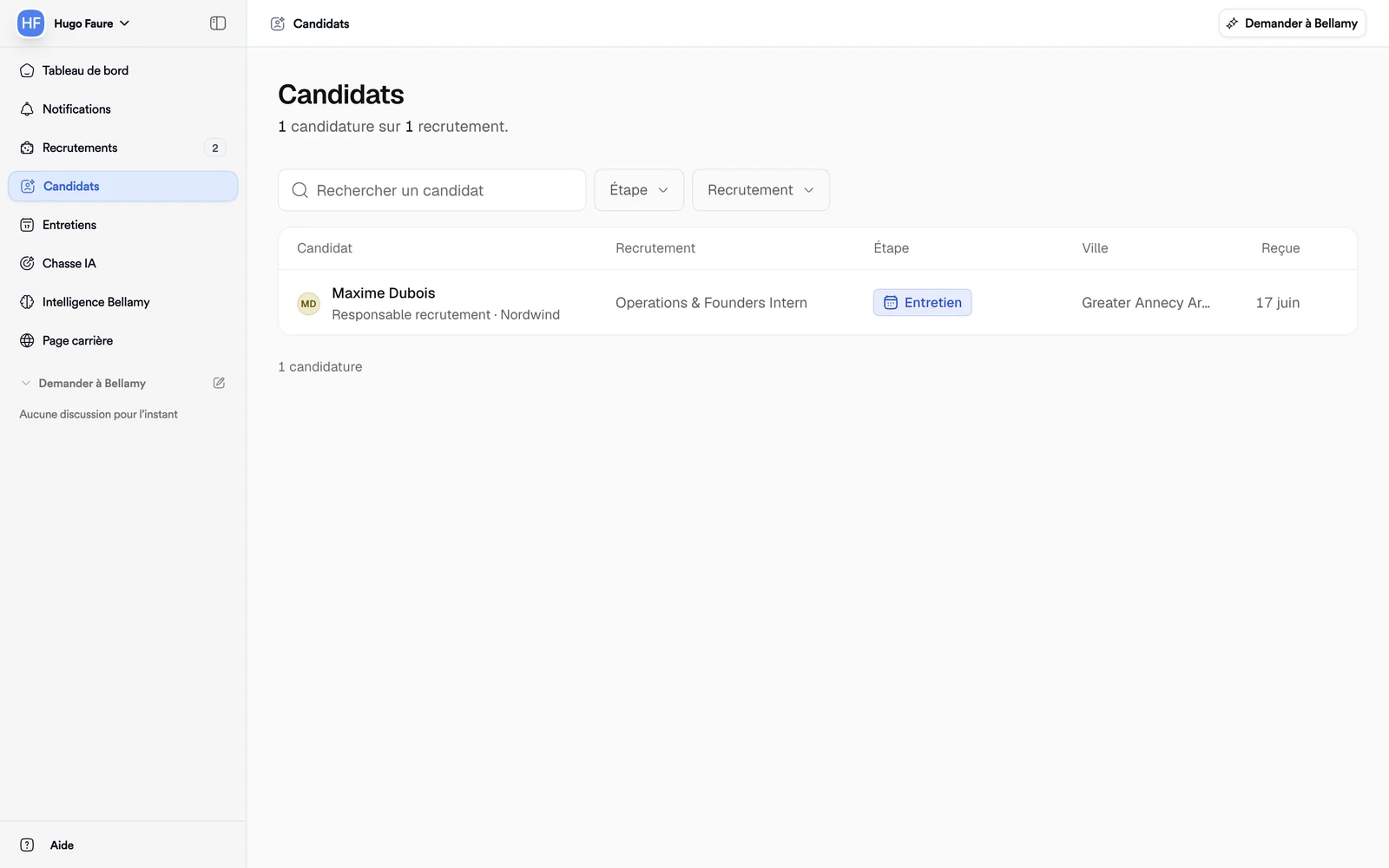
Each row shows the candidate, the job, the stage, the city and the date received. The table reads all six stages, like a job's board: an application that has arrived and that Bellamy hasn't reviewed yet is listed too, at the "Bellamy is on it" stage. Type in "Search candidates" to search by name, role, city, job or skill, and narrow down with the Stage and Job filters. "Clear filters" resets everything.
A row's "…" menu opens the record, moves the candidate to another stage, copies their email or link, or marks them as unseen.
The six stages of a job
In a job's Candidates tab, the columns follow a candidate's path:
- Bellamy is on it: Bellamy and its team are analysing the application. Relevant profiles move to "To decide", the others to "Set aside". On the card, a line says where the application stands, for example "Being analysed" or "Candidate’s interest to confirm".
- To decide: Bellamy shows you this profile. It's your call.
- Interview: you've decided to meet them.
- Offer sent: you've made them an offer.
- Hired: done.
- Set aside: the application stops. "Not relevant" means set aside by Bellamy, "Not selected" means set aside by you or your team.
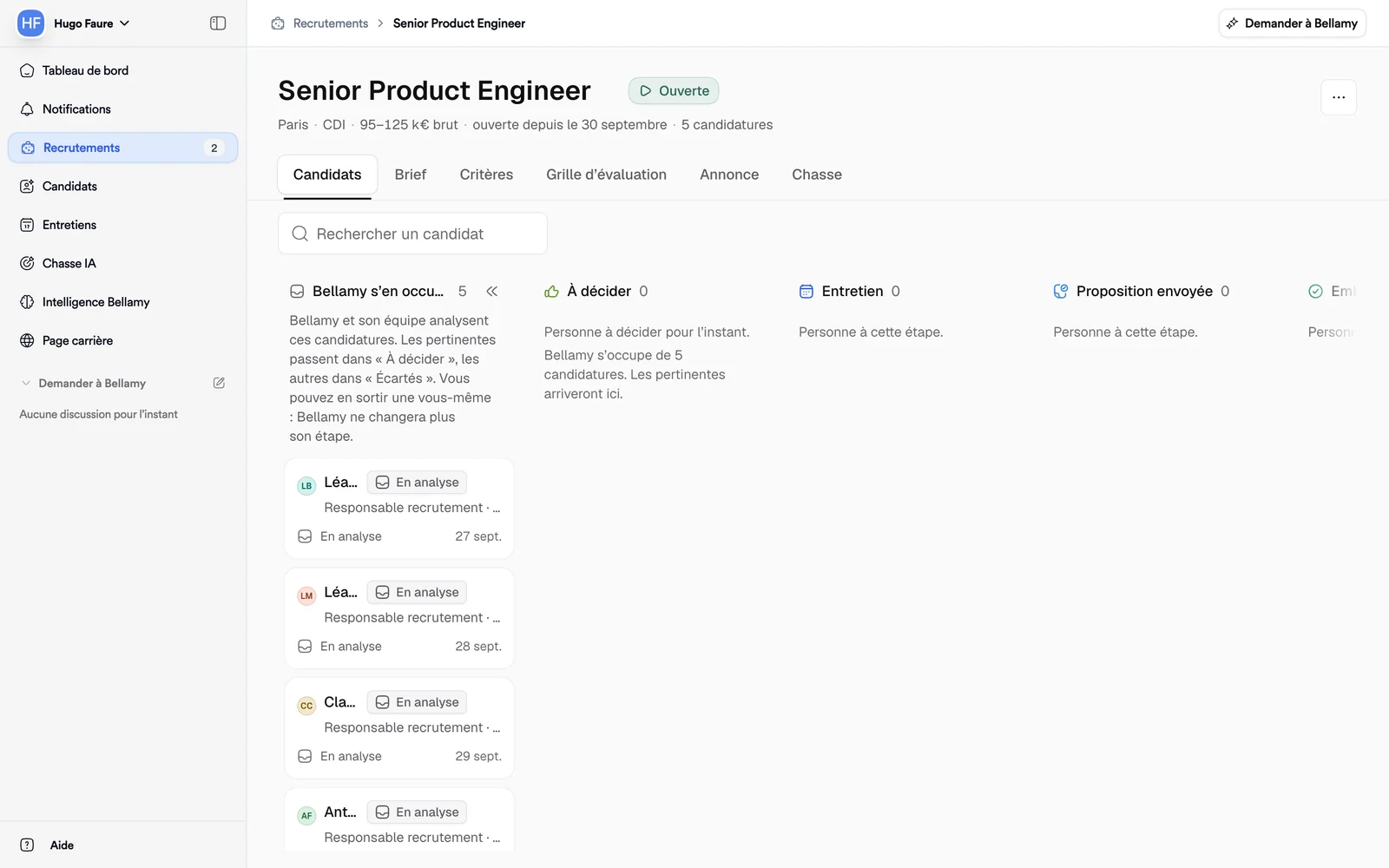
"Bellamy is on it" and "Set aside" are collapsible columns on the sides of the board. Open them to check that no good profile ended up there.
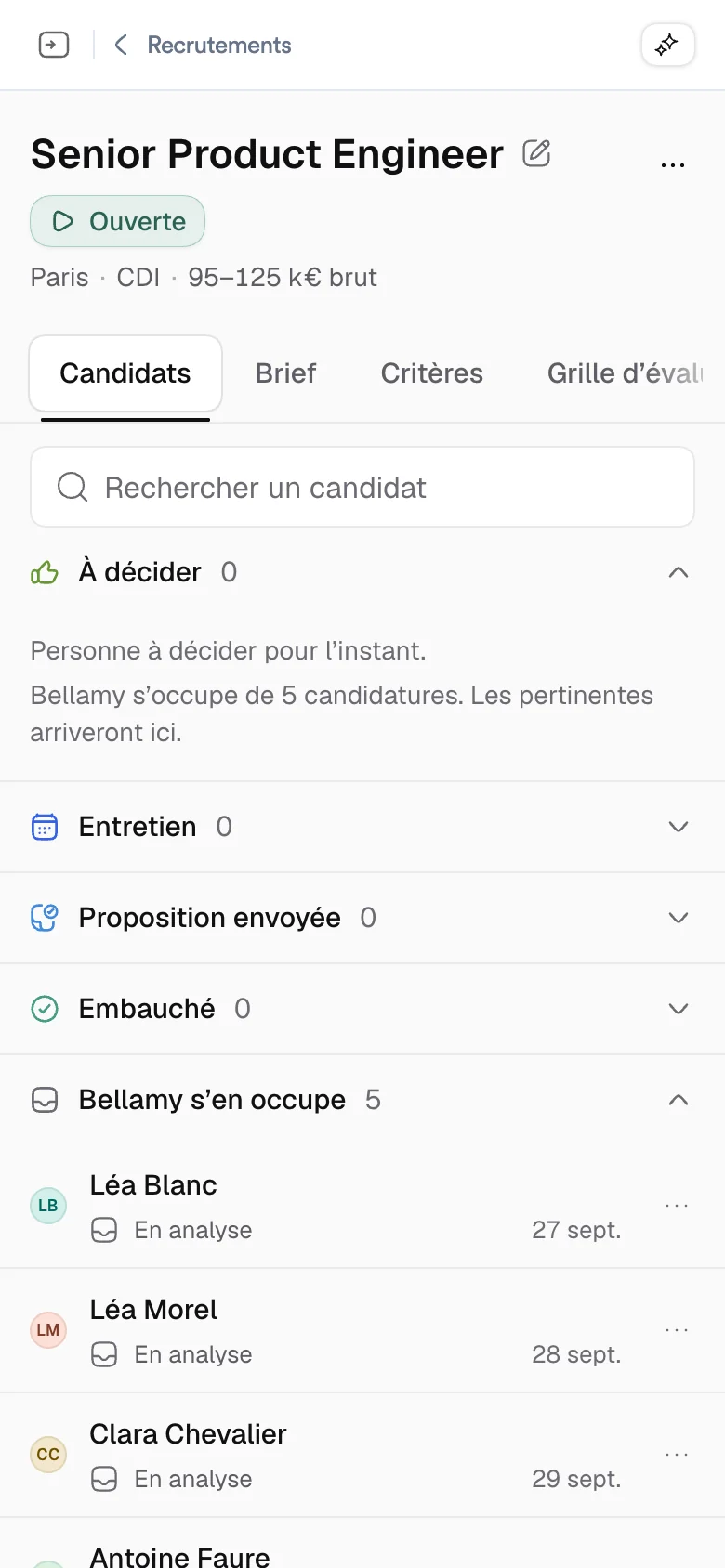
On a phone, the stages appear as an expandable list.
Move a candidate forward
Drag the card to the right column, or open its "…" menu and choose "Move to": that's also the keyboard route. From the record, the decision bar offers the action that follows the stage: "Keep for an interview", "Move to Offer sent", "Mark as hired", or "Reconsider" for a candidate who was set aside.
The candidate changes stage right away, with no confirmation window. A message tells you so and offers "Undo" for a few seconds. Only the "Set aside" stage opens a window, "Don't keep": see Decline a candidate and reply.
"Bellamy is on it" isn't a destination: only Bellamy places candidates there.
Several candidates at once
- Tick the candidates: the checkbox replaces their initials when you hover over the card.
- In the bar that appears at the bottom, choose an action: "Move to", "Download the CVs", "Don't keep", or "More actions" when space runs out.
- "Clear the selection" closes the bar.
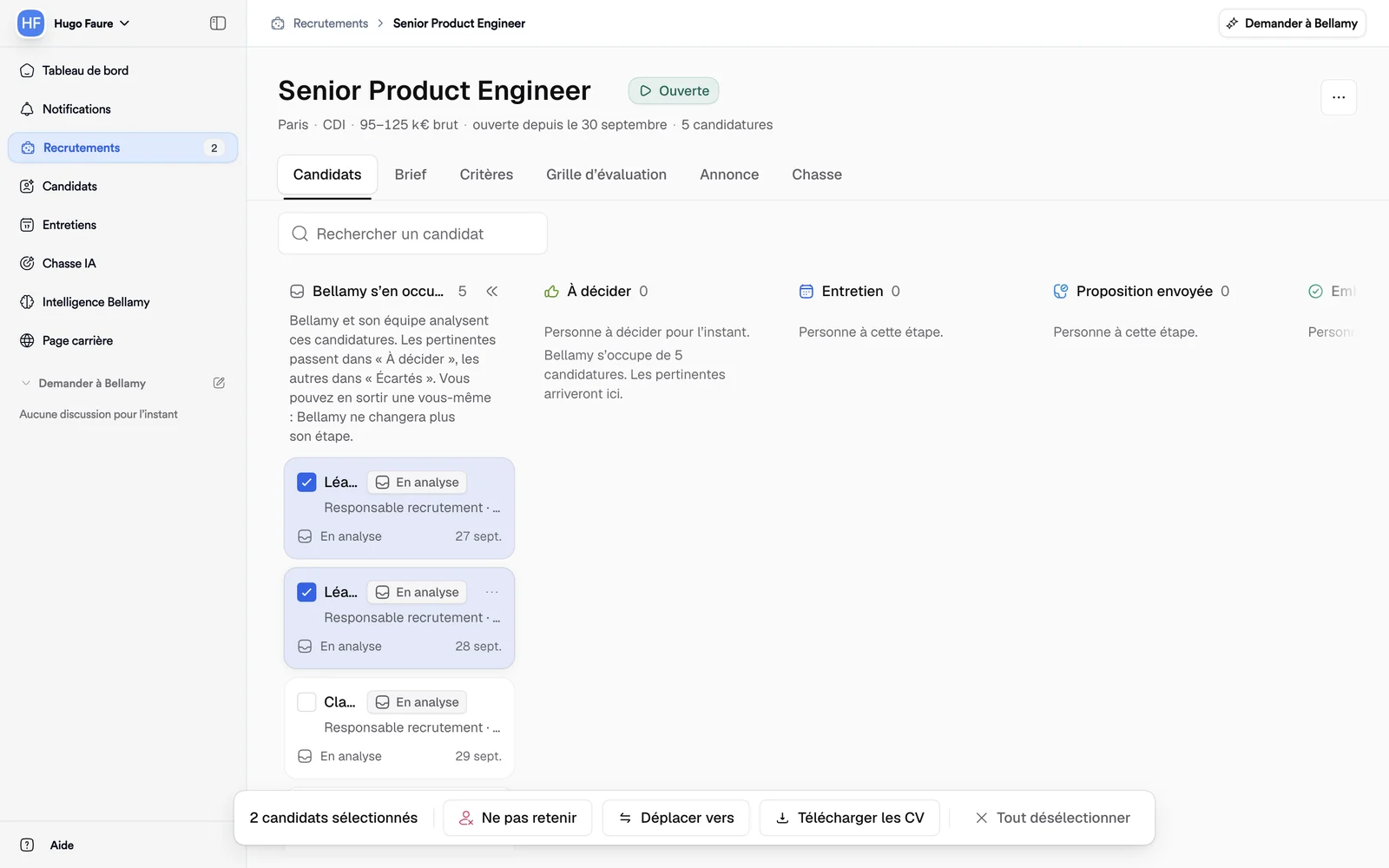
The number of applications you can handle at once is limited: Bellamy tells you if you tick too many. When you choose "Don't keep" for several candidates, Bellamy writes one message per candidate.
Read a profile and move on to the interview
Click a card or a row to open the record: see Read a candidate's record. Once a candidate is at the Interview stage, offer them a slot: see Propose an interview.