
Open a hiring (activate a job)
Review ten real profiles, let Bellamy tune its search, then put the job online when you decide.
- Draft job page, “Open the recruitment” button.
- You need a draft job, reviewed: see Create a job.
- During pre-calibration, nobody is contacted.
Before searching for you, Bellamy checks that it understood the candidate you want. It shows you ten real profiles, with no name or contact details. Your answers become settings for the job, which you approve.
Open the recruitment
On the page of a draft job, click “Open the recruitment”. A window announces three steps:
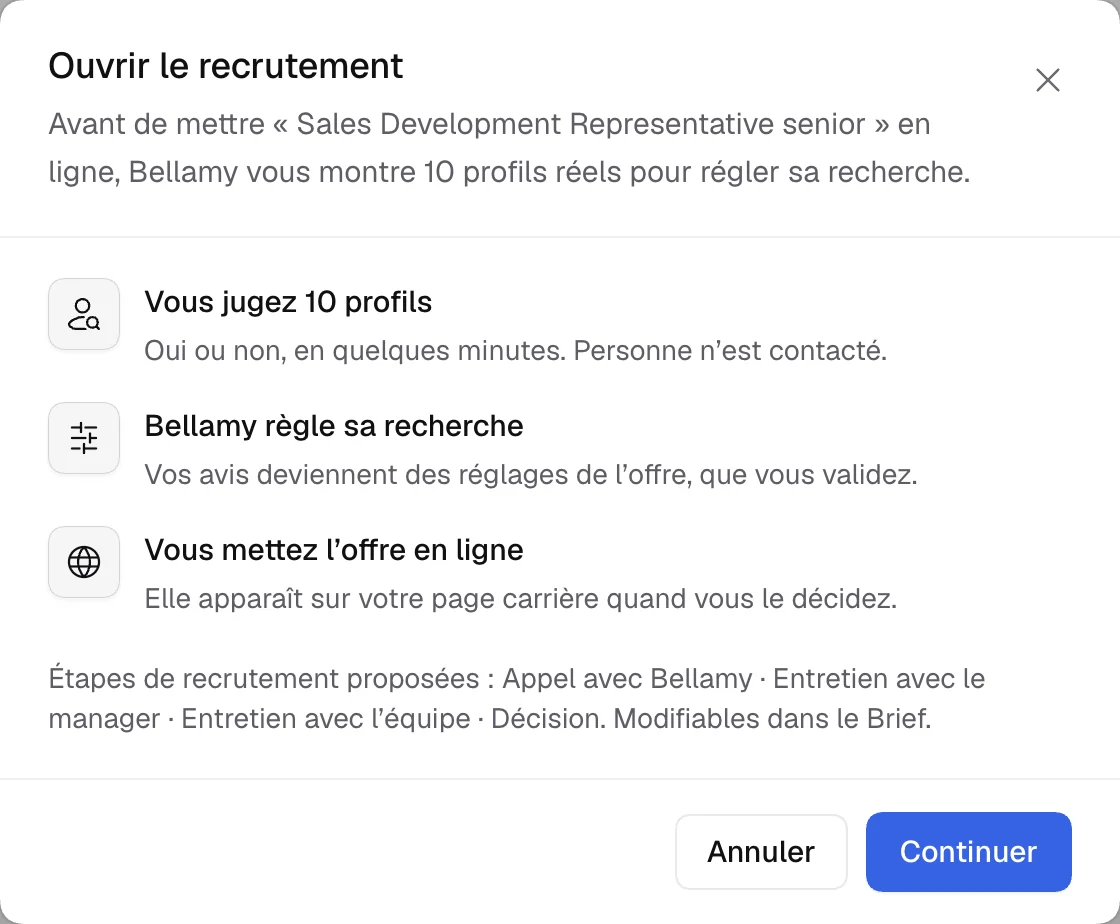
- You review 10 profiles: “Yes or no, in a few minutes. Nobody is contacted.”
- Bellamy tunes its search: your answers become settings for the job, which you approve.
- You put the job online: it appears on your careers page when you decide.
The window also recalls the suggested hiring steps, which you can change in the Brief. Click “Continue”. This window doesn't put anything online.
Find ten profiles
The “What Bellamy understood about your role” screen sums up the profession, what makes an excellent profile and where those people work today. Click “Find 10 profiles”: Bellamy reads public profiles, which takes 2 to 3 minutes. Nobody is contacted, and you can leave the page: the search keeps going.
Judge each profile
Each card presents a profile: its background in brief, strengths, experience, education and skills. Answer with the buttons or the arrow keys:
- “Yes”: this is the profile you are looking for;
- “No”: it isn't. If you know why, give the reason in one click: it's optional, and keys 1 to 4 pick it;
- “Skip”: you don't take a side.
“Your choices” lists your answers. You can change one at any time, Bellamy takes it into account from then on. “Undo” goes back on the last choice. The next profiles adjust to your answers.
Read the suggested adjustments
After the ten profiles, Bellamy “is learning from your choices” for a few seconds. The “What changes thanks to your feedback” screen shows what it took away, then the “Suggested adjustments”, grouped by where they apply:
- the profile search (titles, companies to target or rule out);
- profile sorting (what matters most, good signs, warning signs);
- the evaluation grid, which the Bellamy team approves before it is used;
- a sourcing know-how to approve afterwards in Intelligence;
- your job: these changes show on the ad or in the criteria, and are unticked by default.
Tick what suits you, unfold a line to edit it, then click “Apply the suggestions”. To change nothing, “Back to the job without applying”. If your answers give too little signal, Bellamy says so and suggests five more answers.
Put the job online
On the “Your job is ready” screen, “Put the job online” makes the job visible to candidates on your careers page. The screen states that Bellamy starts no search and contacts no one at this point.
If Bellamy wrote or estimated items you haven't changed (mission, salary, contract…), the screen lists them with “Review”: putting the job online approves them.
Then “Your job is online” appears, with “View on your careers page” and “Copy link”. If your careers page isn't published yet, the job will appear there once it is.
What's next
Follow the job's candidates: Follow your candidates. To pause or close the job, see Manage a job.