
Connect your calendar
Link Google Calendar or Outlook so candidates book your free slots and every interview shows up in Bellamy.
- Interviews menu, or Settings, Connected accounts.
- Calendar sync and interview booking are part of the Premium plan.
Once your calendar is linked, candidates book their interview in your free slots, and every interview shows up on the Interviews page.
Link your calendar
- Open "Interviews" in the left menu.
- Under "Connect your calendar", click "Connect Google" or "Connect Outlook".
- Allow access in the Google or Microsoft window. You come back to Bellamy once the connection is made.
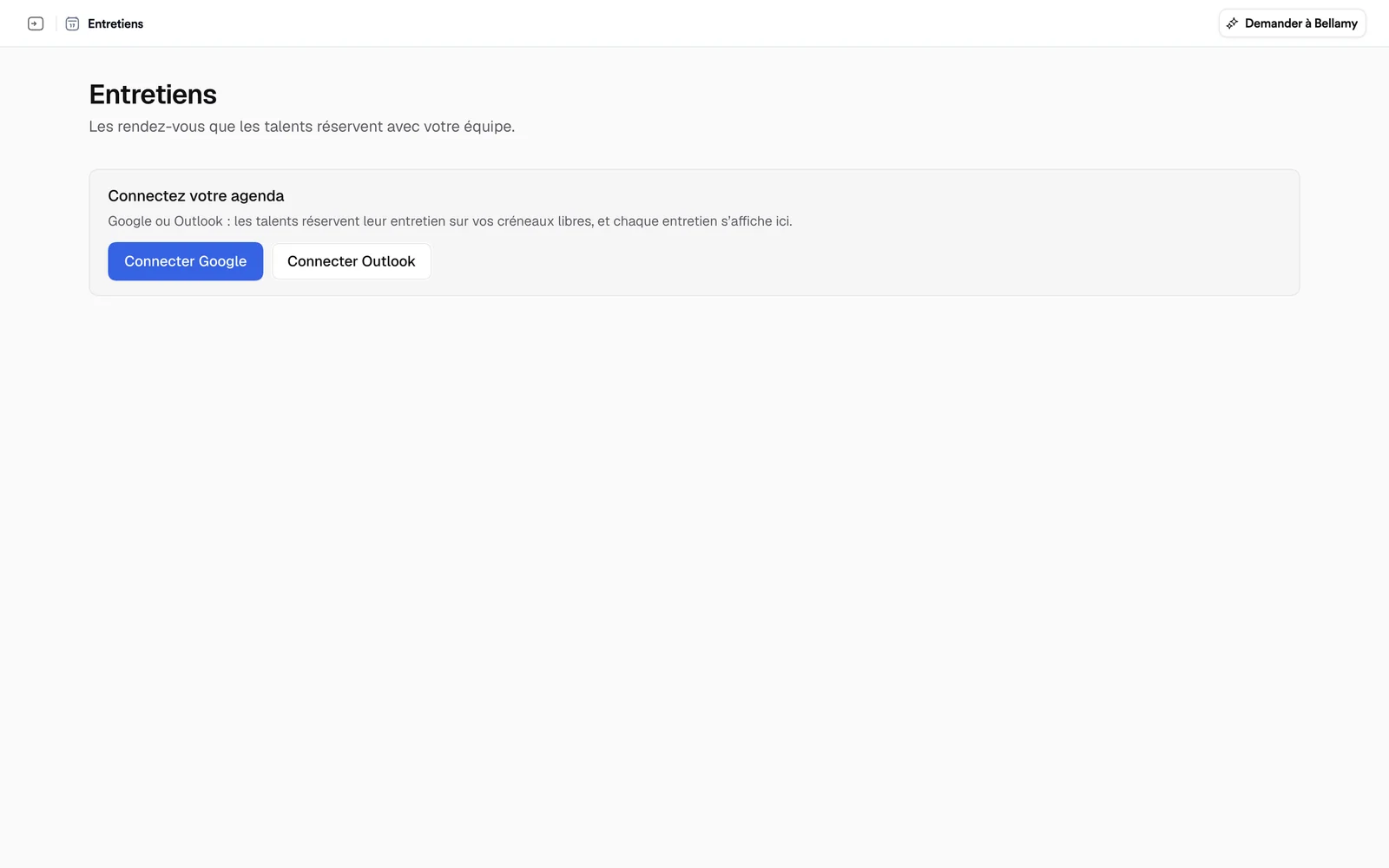
The "Interviews" menu only appears when interview booking is turned on for your company. Without the Premium plan, the page shows "Available on Premium".
The same setting in Settings
In "Settings", "Connected accounts", the "Calendar" section has the same buttons. Once your calendar is linked, the row shows your address, "In sync", and a menu with "Reconnect" and "Disconnect".
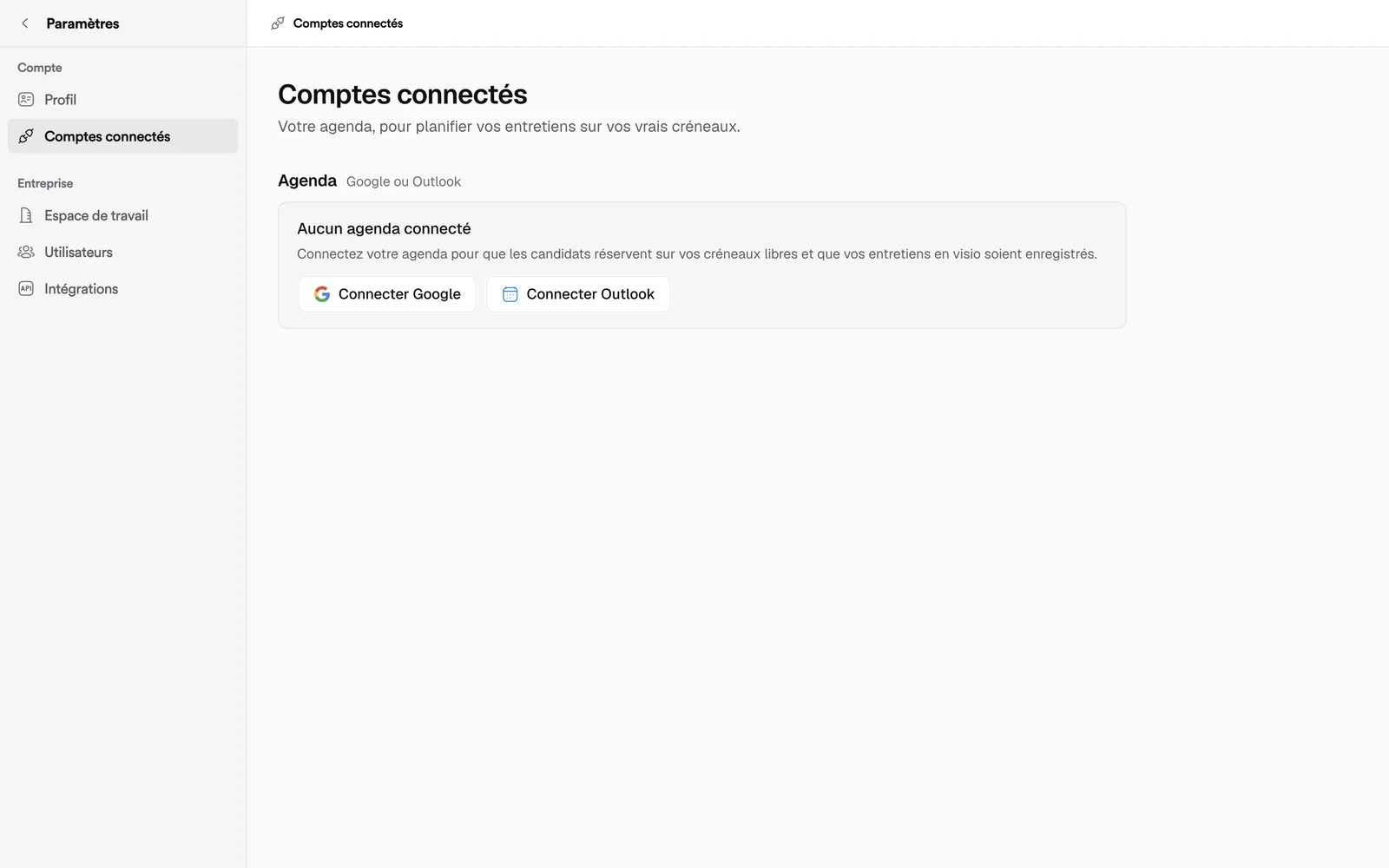
What you find next
The Interviews page lists your appointments, "Upcoming" or "Past". The "My booking page" button gives the link candidates receive: see Share your booking page. For each interview, "Brief", "Join" and "View recording" go with you before, during and after: see Prepare and review an interview.
Once your calendar is linked, your video interviews are recorded.
If it doesn't work
- "Calendar connection failed. Try again or contact support.": start the connection again; if the message comes back, contact support.
- The button leads nowhere: check that your browser hasn't blocked the authorisation window.