
Bellamy in Claude and ChatGPT
Ask about your hiring from Claude or ChatGPT, read only.
- Settings, Integrations, Claude and ChatGPT rows.
- Read only: Claude and ChatGPT view your data without changing or sending anything.
With the Bellamy connector, Claude and ChatGPT can view your jobs, candidates, interviews and sourcing. They can't change or send anything. The connection applies to your account only.
For the full list of tools and example questions, see What Claude and ChatGPT can access.
Open the connection window
Open "Settings", then "Integrations". Claude and ChatGPT each have their own row, with a "Connect" button.
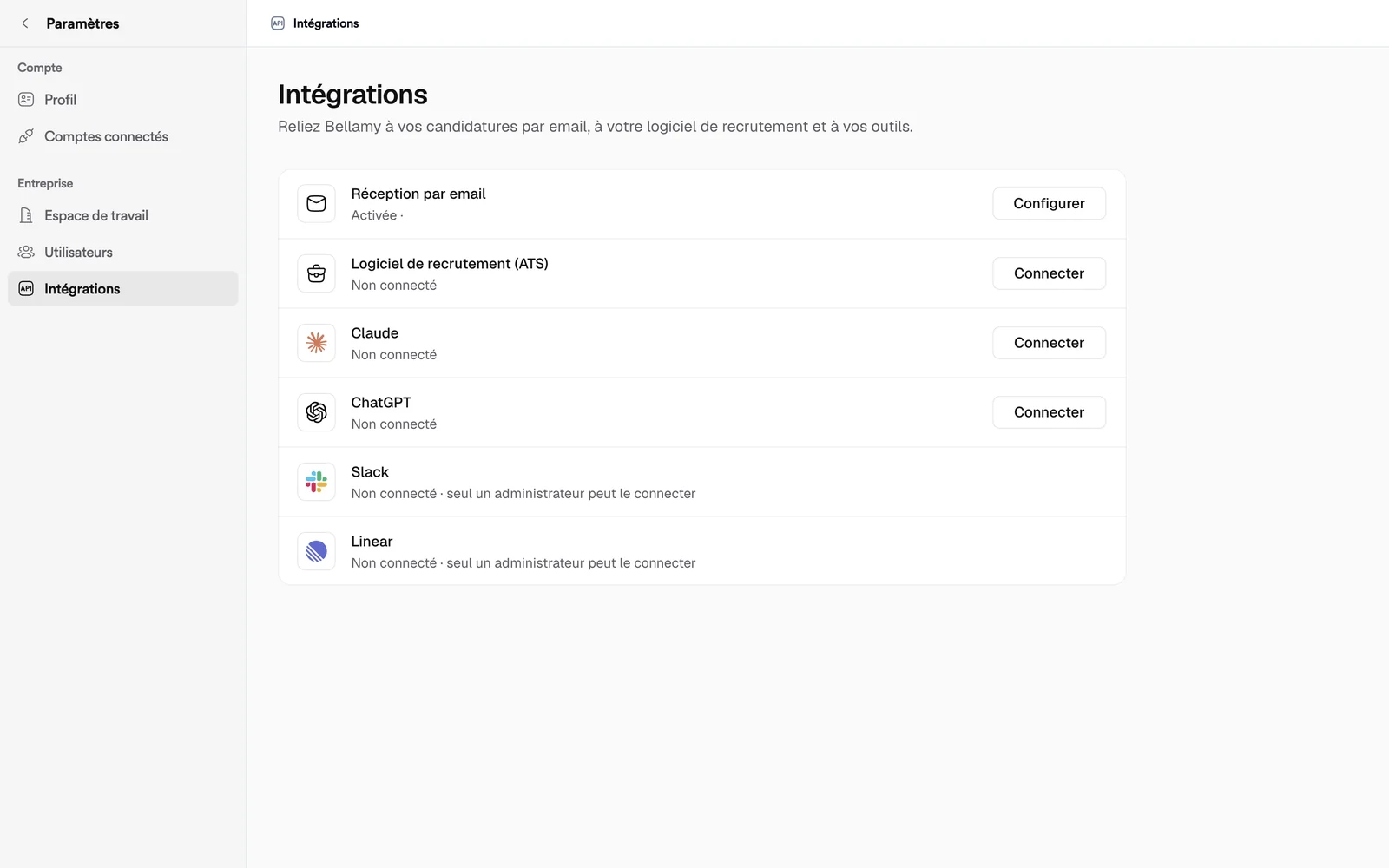
If you don't see these rows, the connector isn't open to your account: contact support.
Click "Connect": the "Connect Claude" (or "Connect ChatGPT") window gives the three steps, with the connector address to copy.
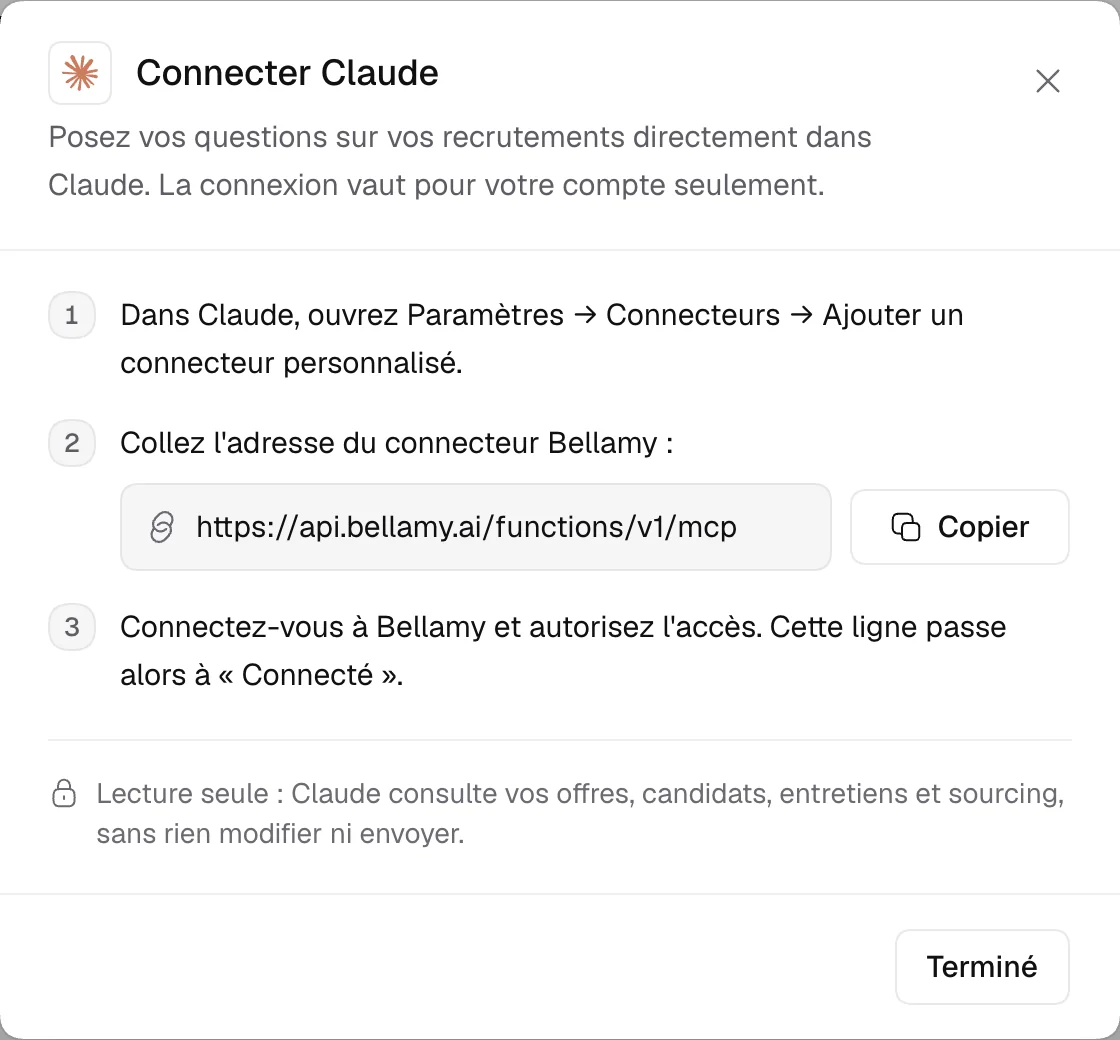
In Claude
- In Claude, open Settings, then Connectors, then "Add custom connector".
- Paste the Bellamy connector address.
- Sign in to Bellamy and allow access.
In ChatGPT
- In ChatGPT, open Settings, then Apps and connectors, then Advanced, and turn on developer mode.
- Create a connector with the Bellamy connector address, using OAuth authentication.
- Sign in to Bellamy and allow access.
Once access is allowed, the row switches to "Connected to your account on …".
In Claude Code
- In a terminal, add the connector:
claude mcp add --transport http bellamy https://api.bellamy.ai/functions/v1/mcp - In Claude Code, type
/mcp, pick "bellamy" and start authentication. - Sign in to Bellamy in the browser window that opens, and allow access.
Disconnect
On the row, click "Disconnect", then confirm "Disconnect Claude?". The app no longer has access to your hiring data through your account. To connect it again, choose "Connect" on its row.