
Review and edit a job brief
The “Brief” tab says what the role is and what Bellamy looks for. Review what it wrote and fix things in place.
- Job page, “Brief” tab.
- What Bellamy wrote itself is marked “To confirm”.
The brief is the role sheet Bellamy uses to search and to evaluate. When the setup ends, it is the first thing you see: review it before opening the recruitment.
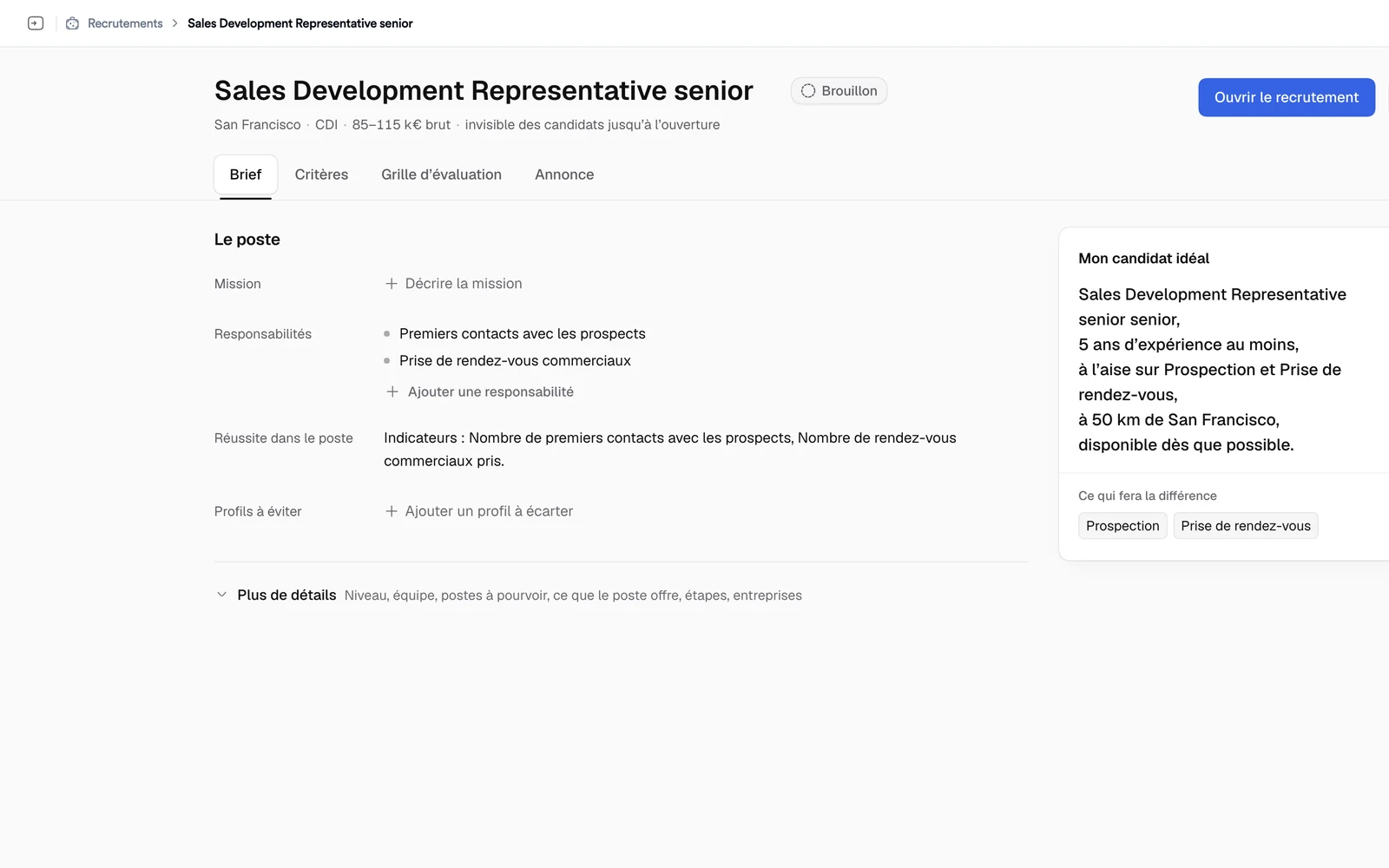
What the brief contains
The “The role” section holds:
- Mission: what the role is for;
- Responsibilities: the tasks, one per line (the first ones show, “+ n more” unfolds the rest);
- Success in the role: what would show, six months in, that the role is a success, if you know it;
- Profiles to avoid: the ones Bellamy should keep out of its search.
“More details” unfolds the rest: the level of the role, team size, openings, what the role offers (perks, growth, benefits), the hiring steps, the companies to target or avoid, and the original job post if you started from one.
Edit a field
Click a field to write in it. There is no “Save” button: leaving the field saves it. Enter confirms a single-line field; in a multi-line field, Enter starts a new line and Cmd or Ctrl + Enter confirms. Esc cancels the edit in progress.
After a change, a “Bellamy’s advice” note may appear under the field: “Use this suggestion” takes it, otherwise ignore it.
“To confirm” items
When Bellamy wrote or estimated an item for you, a “To confirm” badge flags it. Two ways to handle it:
- click “Looks good” if Bellamy got it right;
- edit the field: it then counts as confirmed.
Putting the job online approves the ones that remain: see Open a hiring.
The “My ideal candidate” panel
To the right of the brief, the “My ideal candidate” panel sums up the profile Bellamy is looking for, based on the brief, the criteria, the grid and the ad: a portrait sentence, the “Essential” and “Important” points, “What will make the difference”, and “Search leads” meant for Bellamy.
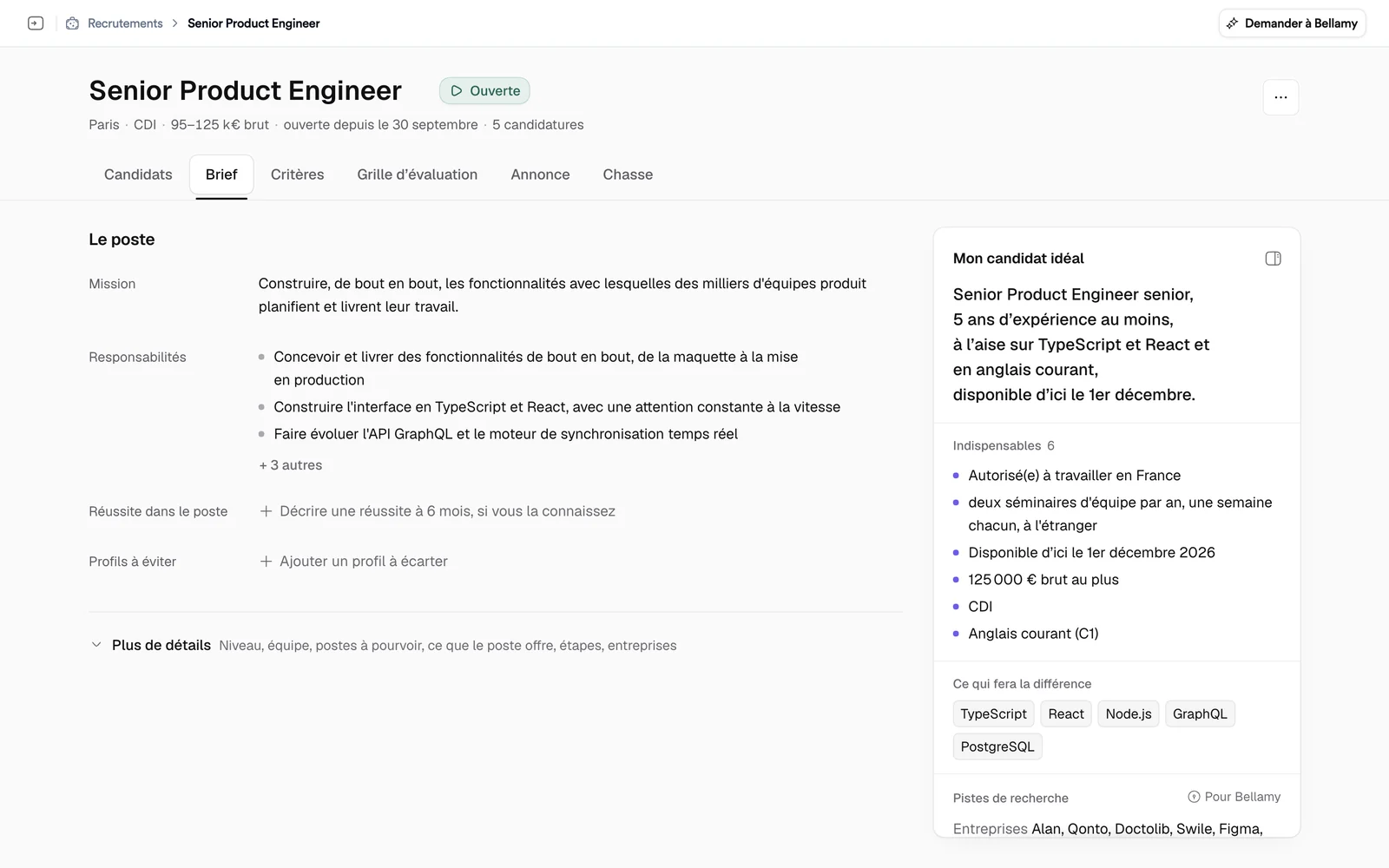
The portrait is computed when the page opens, so it can take a moment to show. A “To check” section flags what is inconsistent or estimated, for example too many essential criteria. The “Collapse the panel” button tucks it away; on a phone it starts collapsed.