
Take an assessment
Answer a skills assessment by voice or on screen, then find your results in the history.
- The Évaluations (assessments) menu in your talent space.
- The length is shown on each assessment before you start.
An assessment measures your skills on a specific topic, such as a job. You take it in one session, and your results stay available afterwards. Most assessment screens are in French in the app, so their labels below come with a translation. The list of past assessments follows the language of the app.
Find an assessment
Open Évaluations: the Mes Évaluations page (my assessments) has two tabs.
- Disponibles (available), with the number of assessments on offer. A Rechercher une évaluation... field (search for an assessment) filters the list.
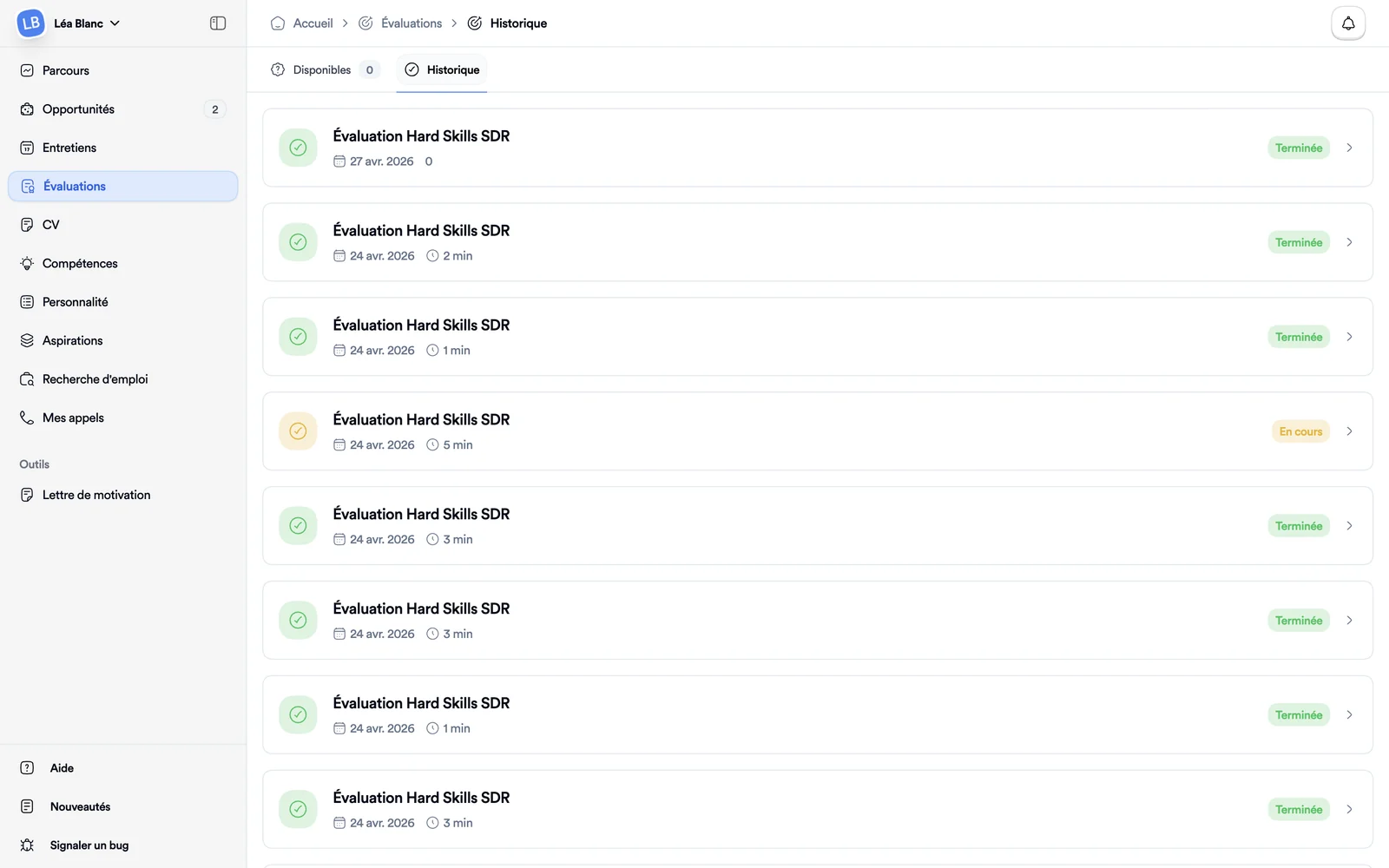
- Historique (history), with the ones you've already started.
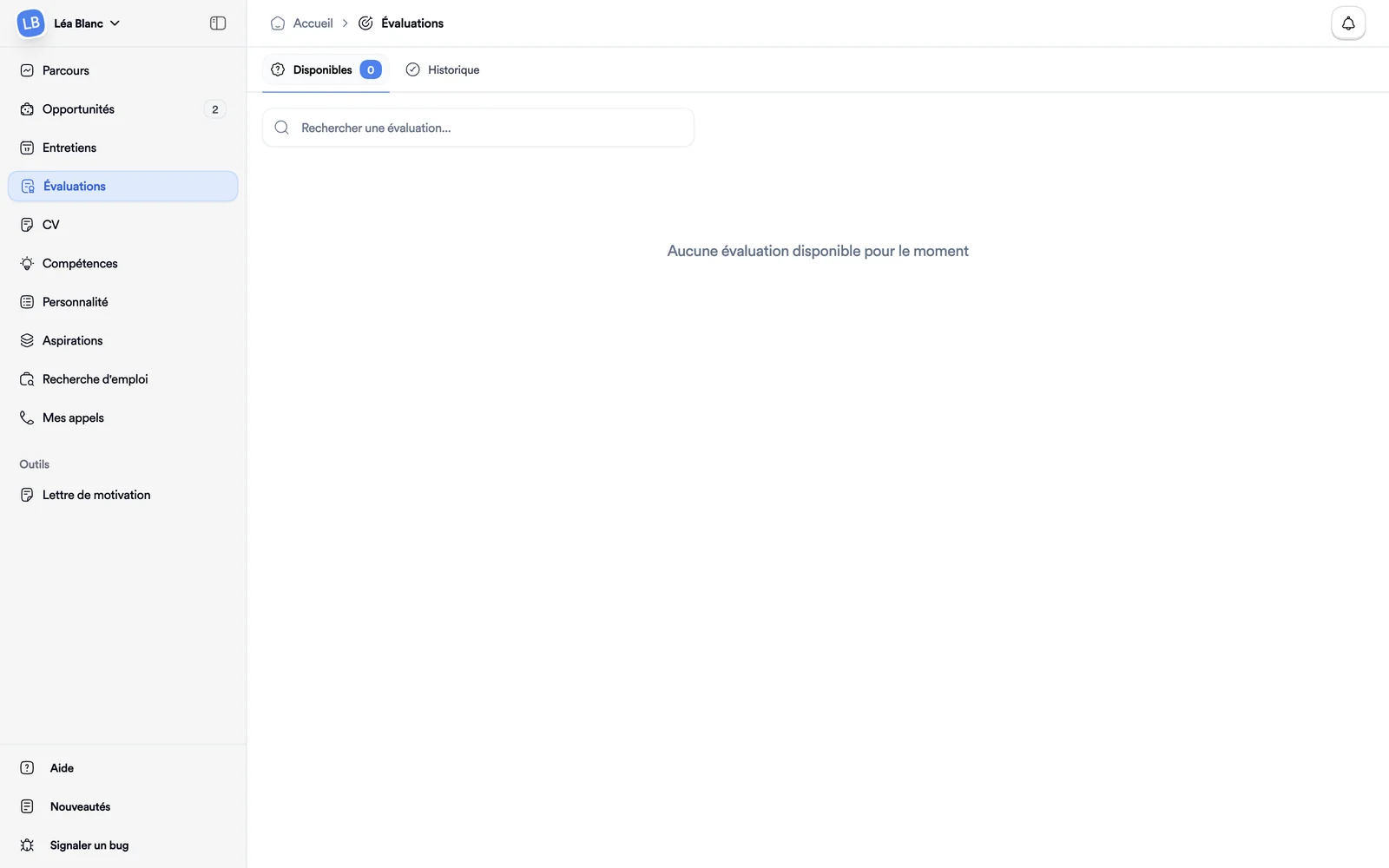
When nothing is on offer, the page says Aucune évaluation disponible pour le moment (no assessment available right now). Each card shows the title, the Hard Skills label, a difficulty level and the length in minutes.
Get ready
Click an assessment: a presentation page opens before anything starts. It shows the length and the number of questions, then details:
- Ce qui vous attend (what to expect): the page presents the assessment as an interview with a voice AI that asks the questions one at a time. Your answers are recorded for analysis, and you get your results after the assessment;
- Compétences évaluées (skills assessed);
- Prérequis techniques (technical requirements): items marked Requis (required) are essential;
- Conseils pour réussir (tips).
Retour aux évaluations (back to assessments) returns to the list without starting anything. When you're ready, click Commencer l'évaluation (start the assessment).
Answer
Depending on the assessment, you're in one of two modes. You don't pick.
By voice. An avatar welcomes you and explains how it works. When you're ready, tell it "Oui, je suis prêt" (yes, I'm ready). It asks each question and you answer out loud. The banner reads Question 1 sur N (question 1 of N). For an open question, click J'ai terminé (I'm done) when you've finished; for a multiple-choice question, you can answer out loud or click your answer. Terminer l'évaluation (end the assessment) closes the session, and the microphone and camera buttons switch off at any time.
On screen. The questions appear and you answer by clicking or typing, with Précédent (previous) and Suivant (next), then Terminer (finish) on the last question. Before you start, the camera and microphone must be on: the screen states that your webcam is recorded for the whole session. Some assessments have a maximum length, shown on the start screen.
Find your results
The Historique tab lists your sessions with their date, length and status, Completed or In progress. A very short session shows under 1 min rather than a bare "0". Click one to open the Résultats d'évaluation page: the score, the completion date, the length and the number of questions, then Détail par compétence (breakdown by skill) with each question and your answer.
The personality test
The personality test (Big Five) and its report aren't under Évaluations: they're under Personality in the same menu. See Update my profile.